
Use the Results Tracker
The Results Tracker uses artificial intelligence to read the end-of-match stats screen of EA FC 27 and saves the data so you can see how your game evolves.
What you need: Your account. With the free one you have 3 trial uses; with Basic or above, or with 10 credits for 30 days, access is complete.
The screenshots show the Spanish interface; the texts appear in the same order in your language.
- 1
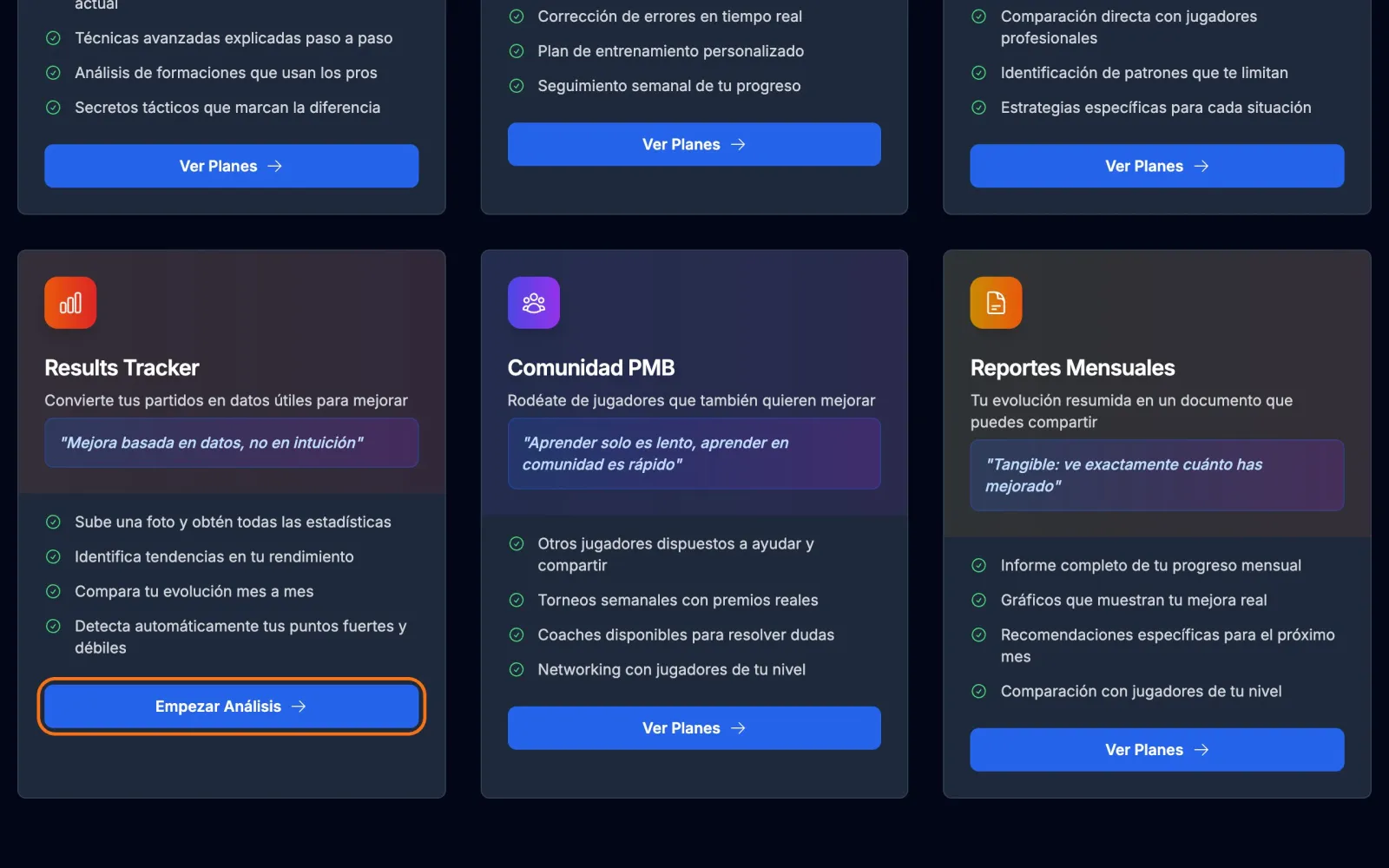
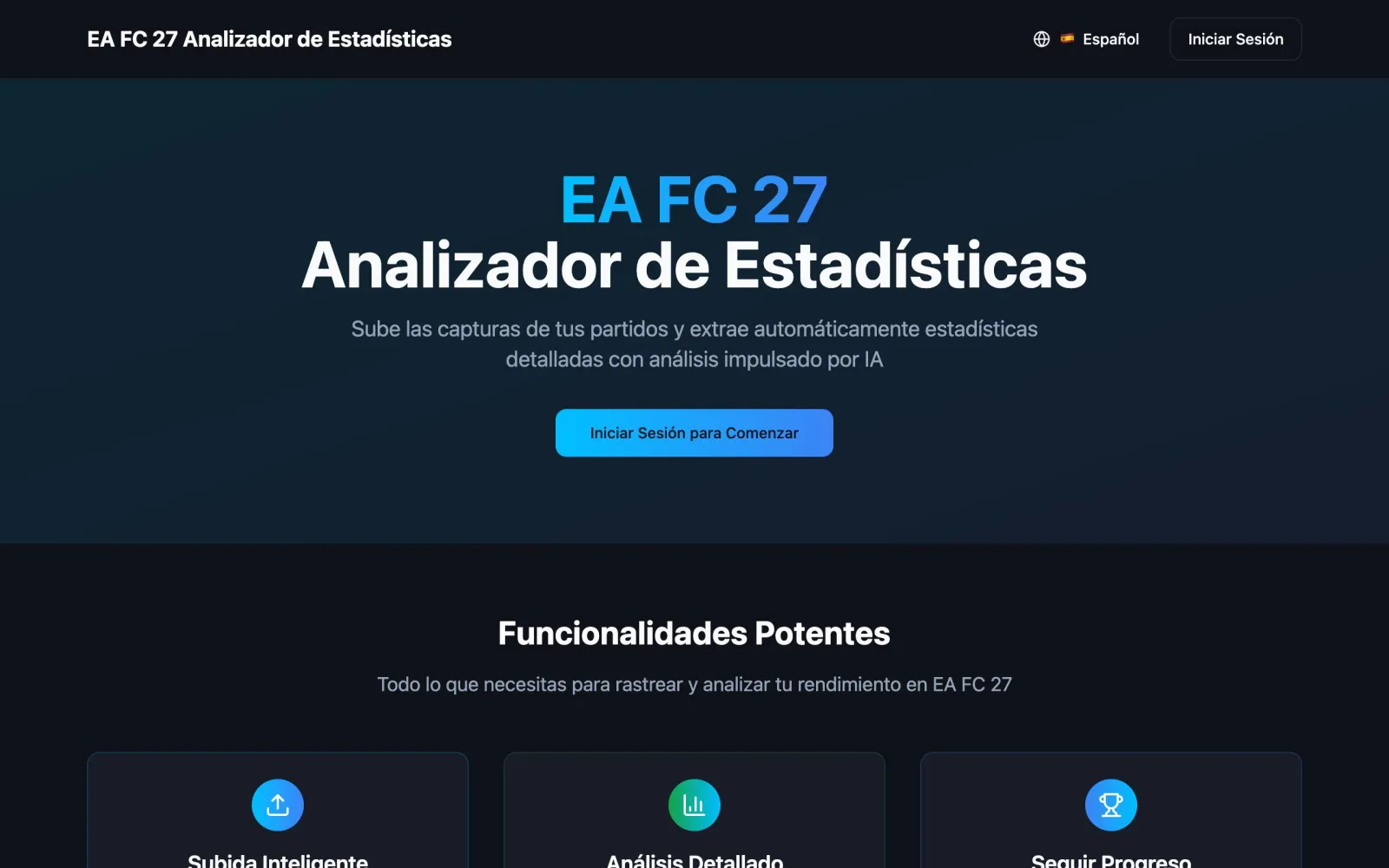
Go to the Results Tracker
It's a separate app, at resultstracker.playmuchbetter.com. You can also get there from Services, with the Start analysing button.
- 2
Take the right screenshot
When a match ends, take a screenshot of the stats screen, the one that compares the two teams' data. A screenshot from the console or PC itself is better than a photo of the TV.
- Formats: PNG, JPG, JPEG or WebP.
- Up to 10 MB and at least 800×600 pixels.
- 3
Upload it and check your data
The AI extracts the score, possession, shots and their accuracy, expected goals (xG), passes, dribbles, tackles, saves and more. It doesn't record scorers or assists.
Stuck?
Check the FAQ or write to us.