
Move or cancel a lesson
Once booked, the lesson is yours to manage: you can ask for another time, cancel it or, if none of the published slots suits you, propose when you can. All from "My classes", without writing to anyone.
What you need: A booked 1:1 session. If you don't have one yet, start with the guide "Book a 1:1 session".
Coaching is in English
1:1 sessions, video analyses and squad reviews are delivered in English (or Spanish, if you prefer).
The screenshots show the Spanish interface; the texts appear in the same order in your language.
- 1
Open "My classes"
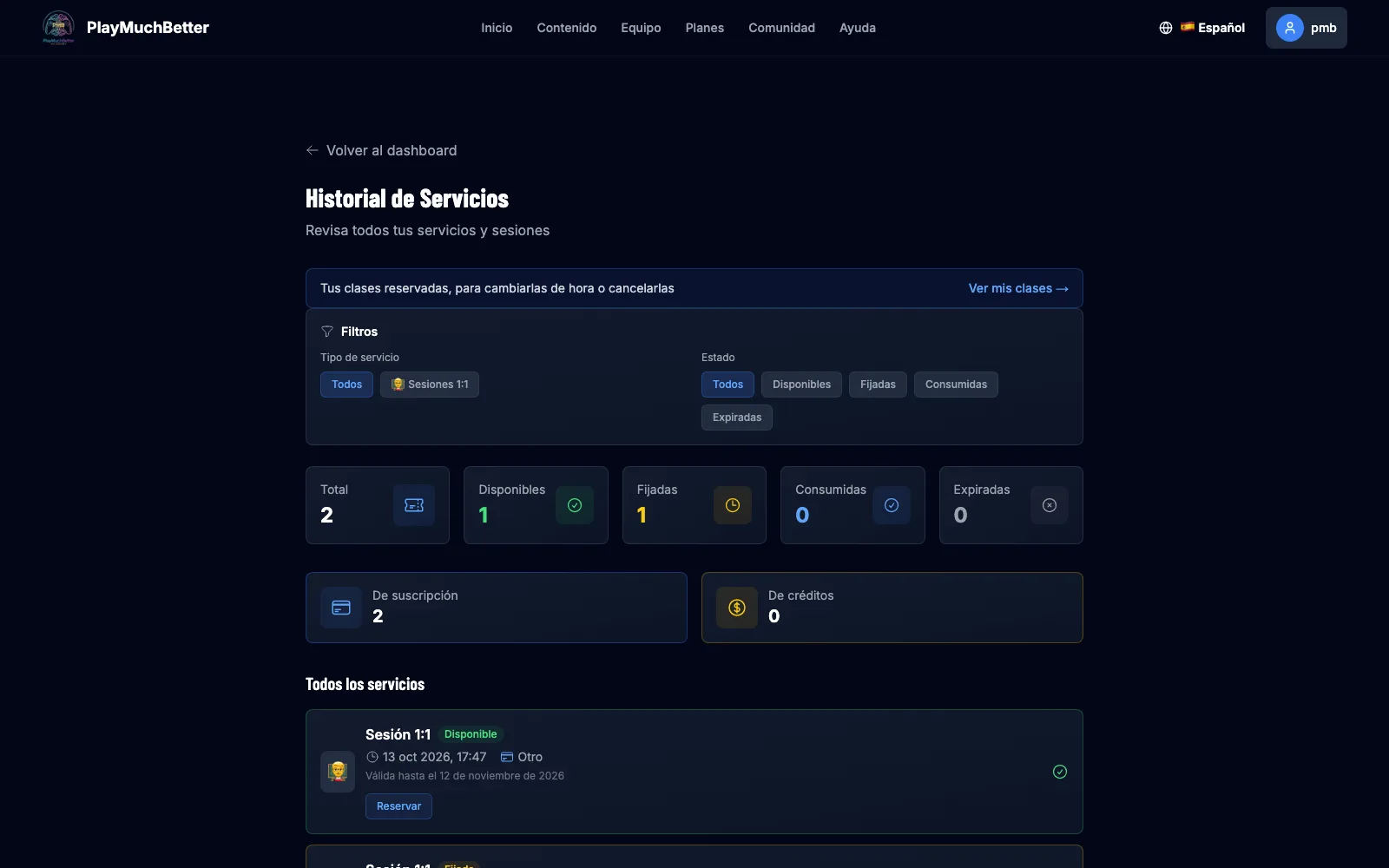
At the very top of your services history there is the notice "Your booked classes, to move or cancel them": press See my classes. You can also go straight to My classes.
- 2
Each lesson, with its buttons
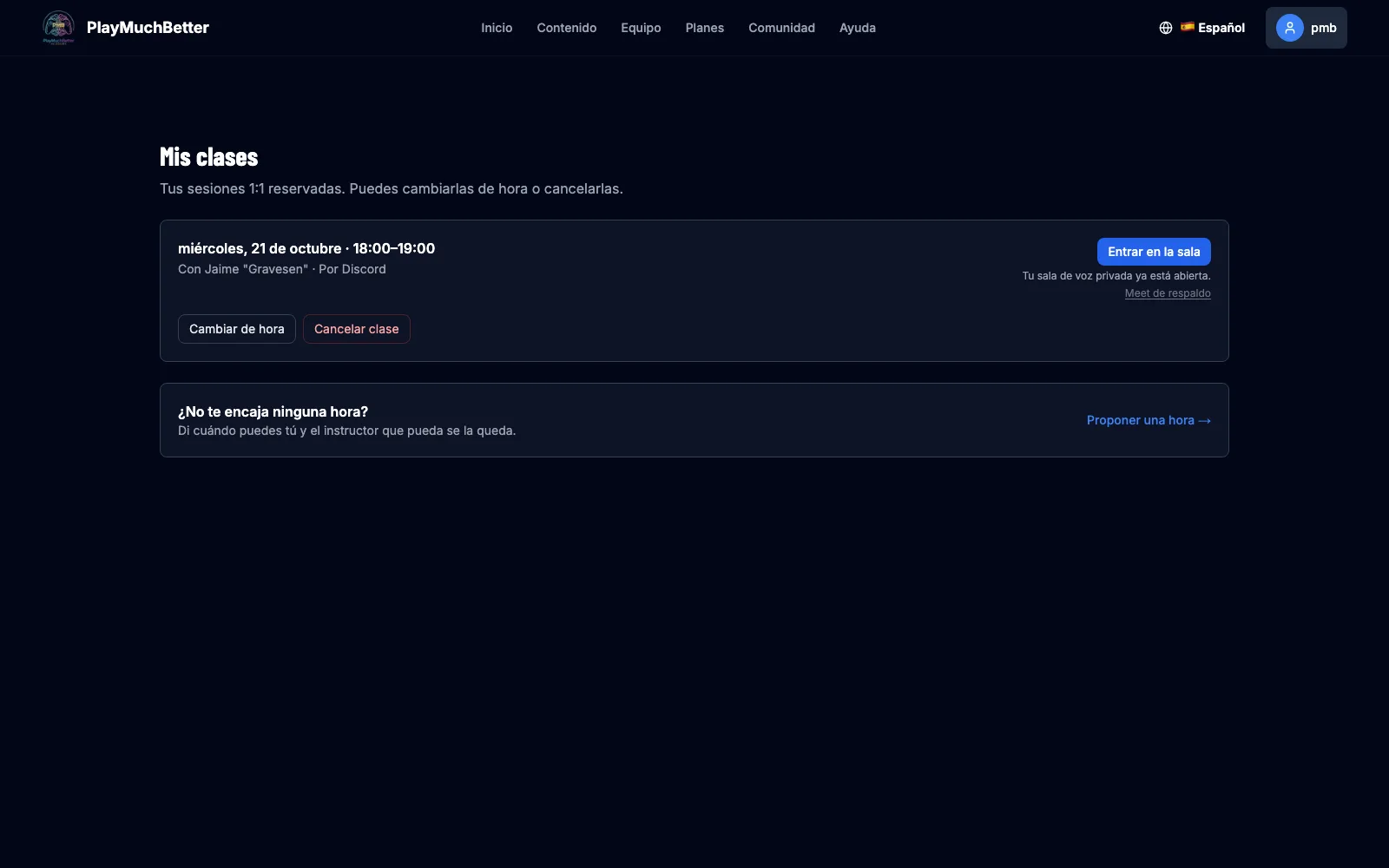
Each booked lesson shows the day, the time, the instructor and the platform you chose when booking:
- On Discord: 15 minutes before, a private voice room just for you and your instructor opens, and the button becomes Join the room. Until then, Open Discord takes you to the server. You need your Discord connected on the website; otherwise, use the backup Meet link below it.
- On Google Meet: Join Meet opens the video call.
Under each lesson you have Change time and Cancel lesson.
- 3
Ask for another time
Press Change time, pick the new day and one of that instructor's free slots, and tell them why if you like. Send proposal sends it over: the lesson doesn't move until they accept.
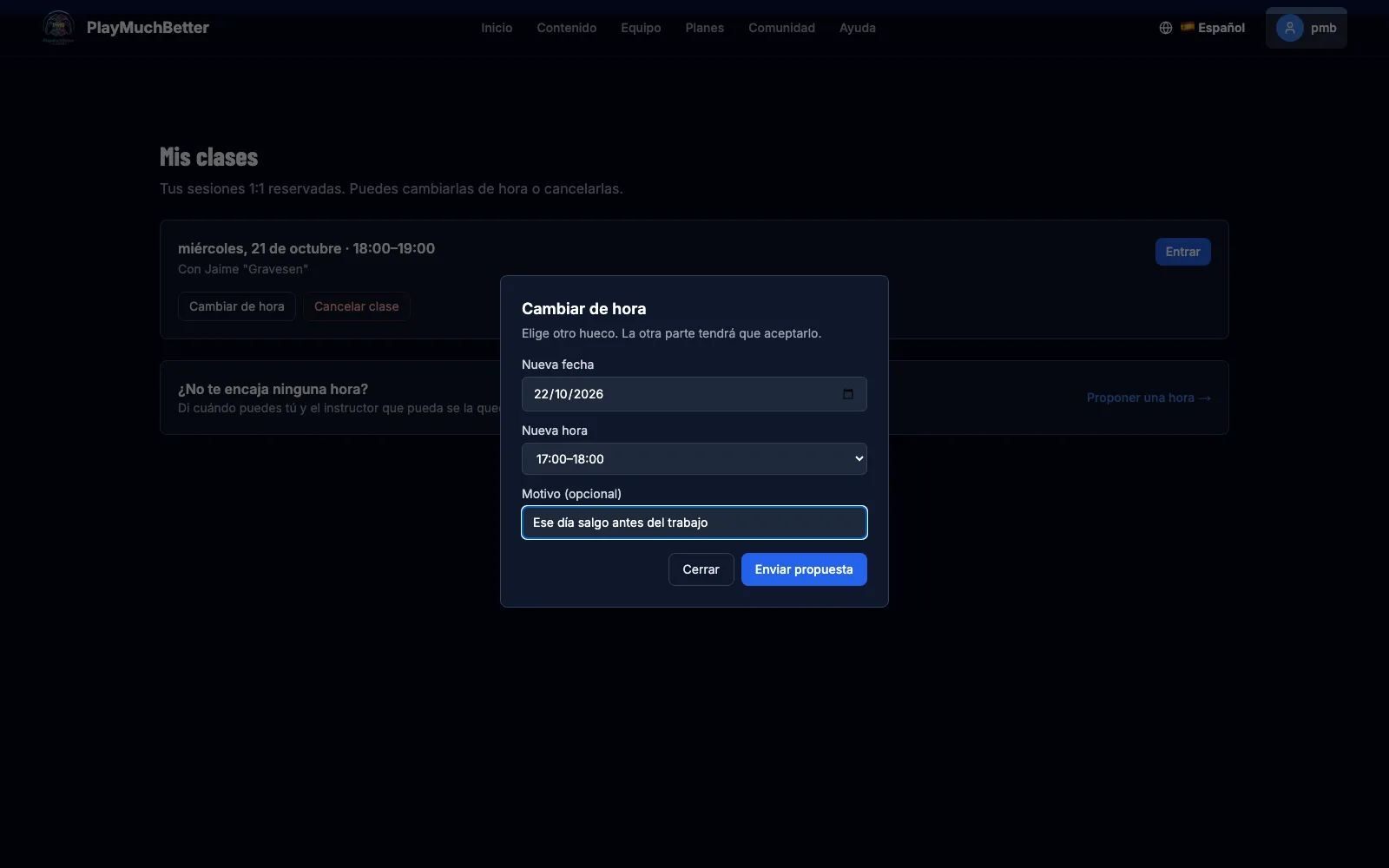 Rules: a change is requested at least 24 hours in advance, each side can ask for one change per lesson, and the proposal expires after 48 hours if nobody answers.
 - 4
While they answer
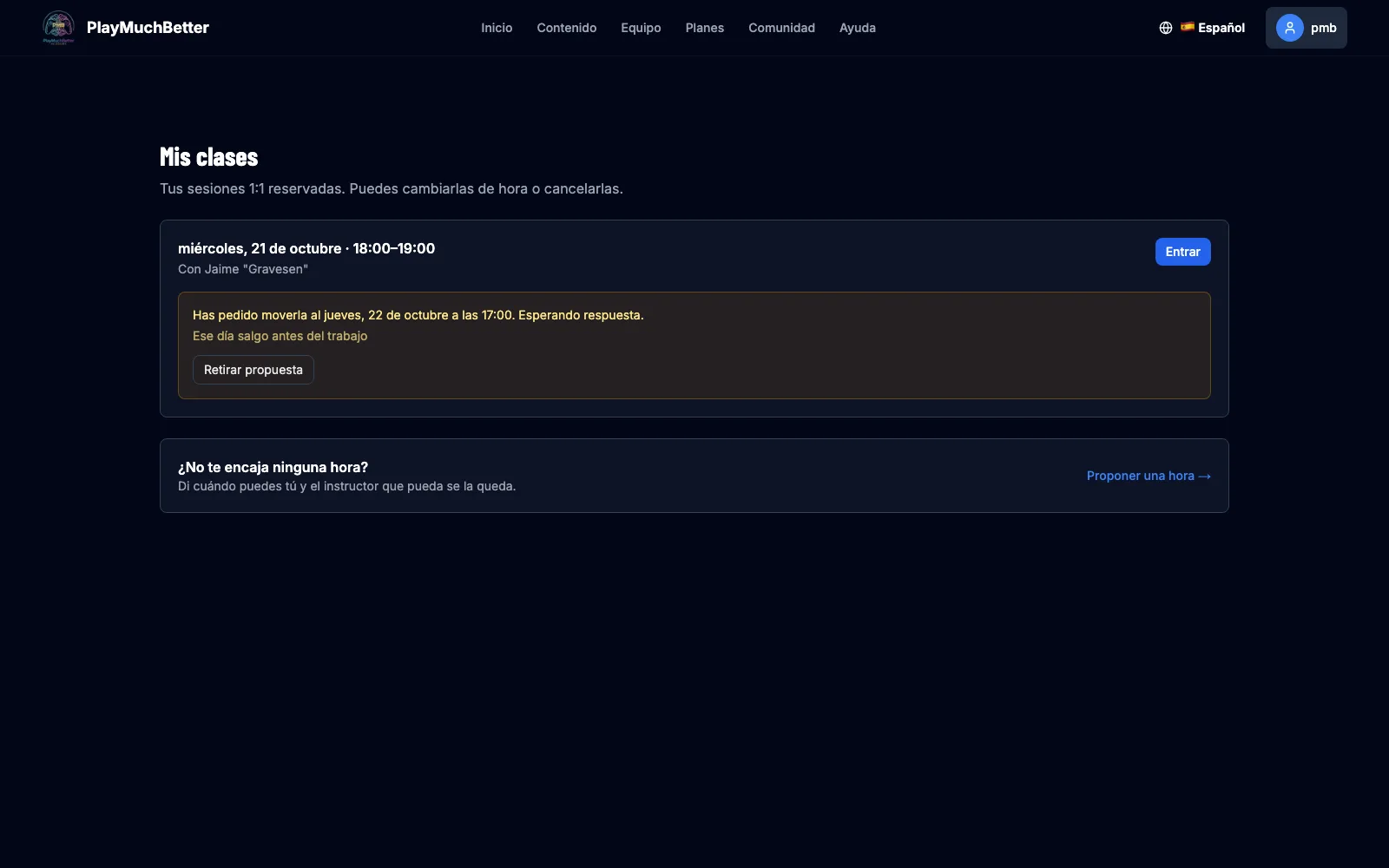
The lesson stays at its usual time with your proposal underneath. Changed your mind? Withdraw proposal. When the instructor accepts, the lesson moves on its own and you get an email with the new time; if they decline, it stays as it was.
It can also go the other way: the instructor may ask you to move the lesson. You'll see it right here, with Accept and Decline, and we let you know by email.
- 5
Cancel a lesson
Press Cancel lesson and, if you like, say why. The slot is freed straight away and we let the instructor know.
If you cancel at least 24 hours in advance, you keep the session: it goes back to "Available" in your history to book another day. With less than 24 hours' notice, you lose it. - 6
No time suits you? Propose your own
If there is no slot in the calendar that works for you, press Propose a time: say the day, the time, how long you want it to last and what you want to work on, then Publish. Every instructor sees it and the first one who can takes it: you get an email with the confirmation and the link, and the lesson shows up in "My classes".
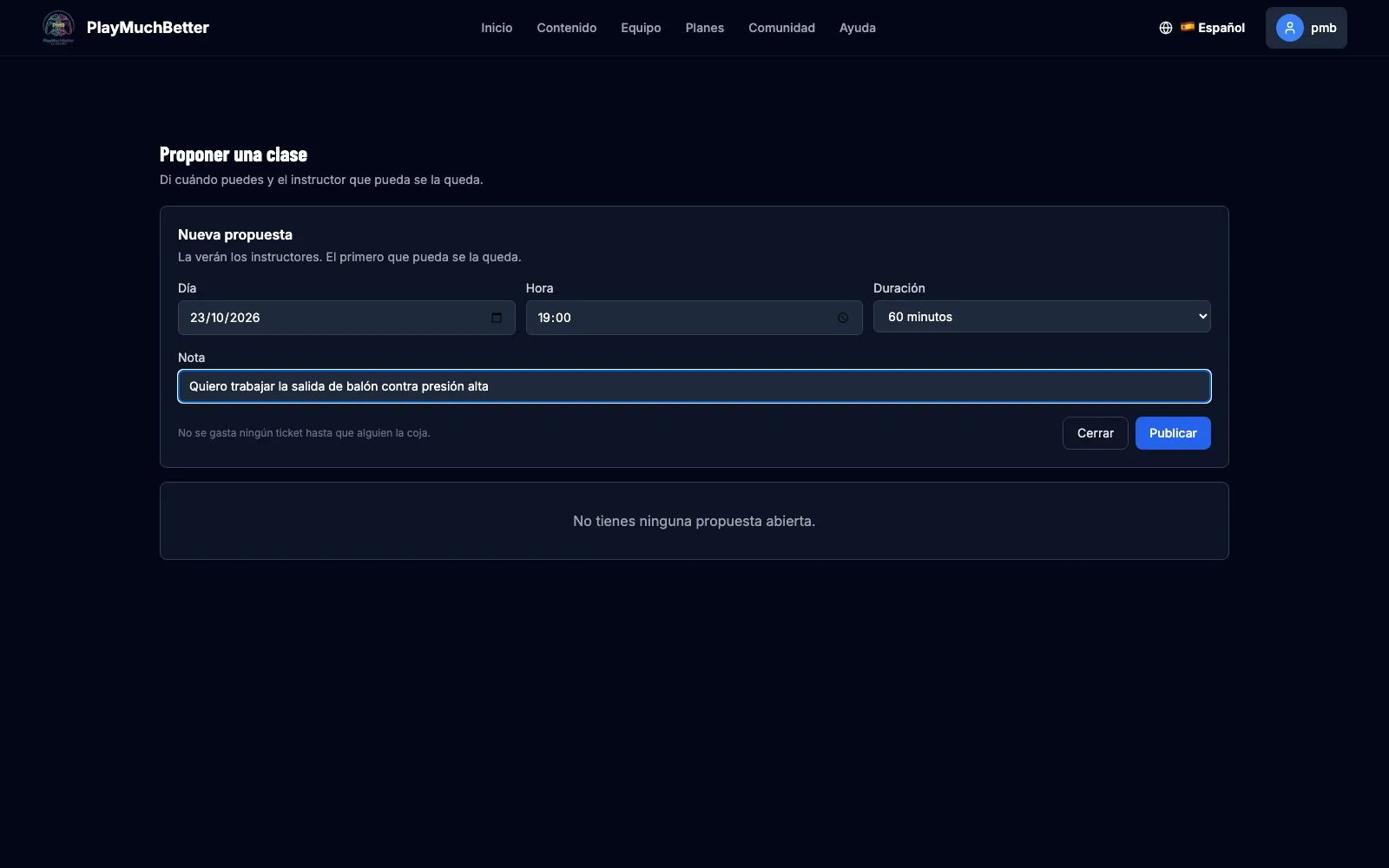 No session is used until an instructor takes it. If nobody can within 72 hours (or the proposed time arrives), the proposal expires and we let you know so you can try another.
Stuck?
Check the FAQ or write to us.